Note that there are two LED over the Doorbell Camera lens. The one on the right indicates the status of the Doorbell. The one on the left is used for infrared night vision. It turns on when it is dark and looks red to the human eye.
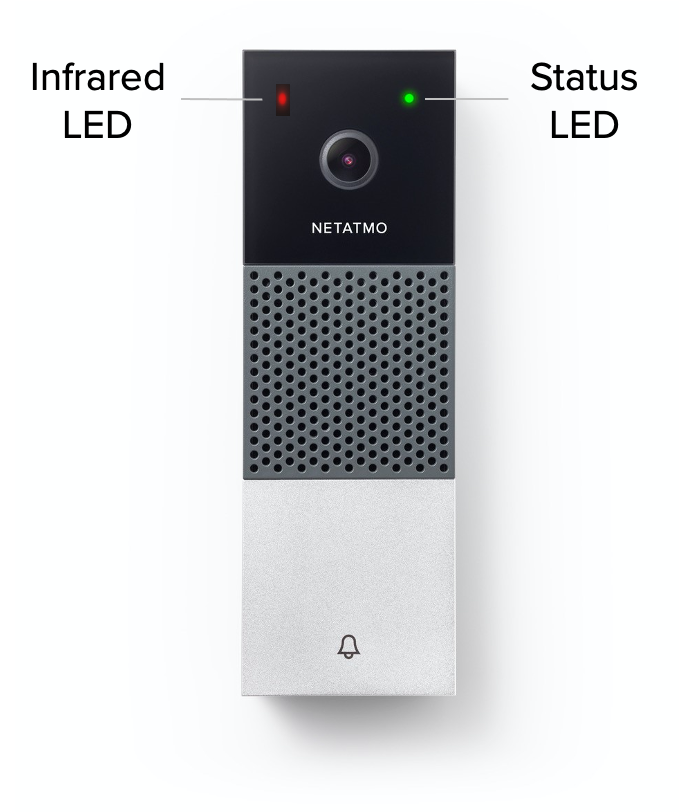
The colors below correspond to the status LED also called color LED and can indicate a variety of things.
Note that in order to protect the user’s privacy, any Doorbell configured with HomeKit will have a solid blue status LED. When the Doorbell camera is in use the status LED will turn on red. The status LED will return to solid blue when the Doorbell camera is not in use anymore.
| Status LED | Problem | Possible causes | Solutions |
|---|---|---|---|
| Off | My product does not start. | Circuit breaker is turned off. | Turn circuit breaker on. |
| Incorrect circuit wiring. | Check wire connections. Shut off the power first. (Go back to step 3) | ||
| Fuse is blown. |
Make sure your chime module's selectors are in 1-LOW position. (See step 8) Replace the Smart Video Doorbell internal fuse with the provided (See Fuse Remplacement section). |
||
| Glowing Green | N/A | The product is booting. |
Wait for the product to finish booting. If the LED doesn't stop to blink, please read this article. |
| Solid Green | My chime does not ring. | Incorrect circuit wiring. | Check wire connections. Shut off the power first. (Go back to step 3) |
|
Solid Red
|
My product is not responding. |
Incorrect chime module wiring. | Check the wire connections of your chime module. Use wagos if necessary. Shut off the power first. (Go back to step 5) |
| Installation blocked (230V only) | Shut off the power for 2 minutes. Set the chime module's selectors on 1-HIGH, then go back to step 24. | ||
| Transformer not powerful enough. | Replace your transformer with a more powerful one. | ||
| N/A (My product is already installed) |
The Doorbell camera is in use. | Stop the live stream in your app. | |
| Glowing Blue | Electrical installation blocked. | Incorrect chime module configuration. | Make sure your chime module's selectors are in 1-HIGH position. (See step 26) |
| Solid Blue | My product is already installed | My product is configured with HomeKit. | N/A |
| Glowing Purple | Electrical installation blocked. | Incorrect chime module configuration. | Make sure your chime module's selectors are in 2-LOW position. (See step 26) |
| Glowing Orange |
My product is not responding. |
Internal backup power supply level is low. | Leave the Smart Video Doorbell powered on an USB power supply 2A - 5V during one hour approximately. Re-plug the doorbell and it should no longer blink in orange. |
| Glowing White |
My product is not visible in the app. |
Installation incomplete. | Configure your product with your smartphone. (See step 28) |
| Blinking Yellow | My product is not visible in the app. |
Product couldn't connect to the internet router. | Make sure you entered the correct Wi-Fi password. |
| Make sure you have Wi-Fi reception at your door. | |||
| Make sure you have a 2.4GHz Wi-Fi network. | |||
| Make sure your internet router is not blacklisting the product. | |||
| Blinking Red | My product is not visible in the app. |
Product configuration timeout. |
Press the doorbell button until you see the LED glowing white and continue the installation on the app. |
Updated